An agent can only help with your goals if it can see them. For most teams the goals sit in one tool and the AI assistant sits in another, so the first practical step is to connect the two.
The standard way to do that is MCP. This chapter explains what it is, what an assistant can do once it is connected, and how to keep the access under control.
What MCP is
MCP stands for Model Context Protocol. It is an open standard that lets an AI assistant connect to an outside tool and use it: read its data and take actions in it. A tool publishes an MCP server once, and any assistant that supports the standard can connect to it.
For OKRs, this means your goals are no longer locked inside the OKR tool. They are available wherever the thinking and the work happen: in Claude, ChatGPT, Codex, Grok Bot or any other client that supports MCP.
One connection, two directions
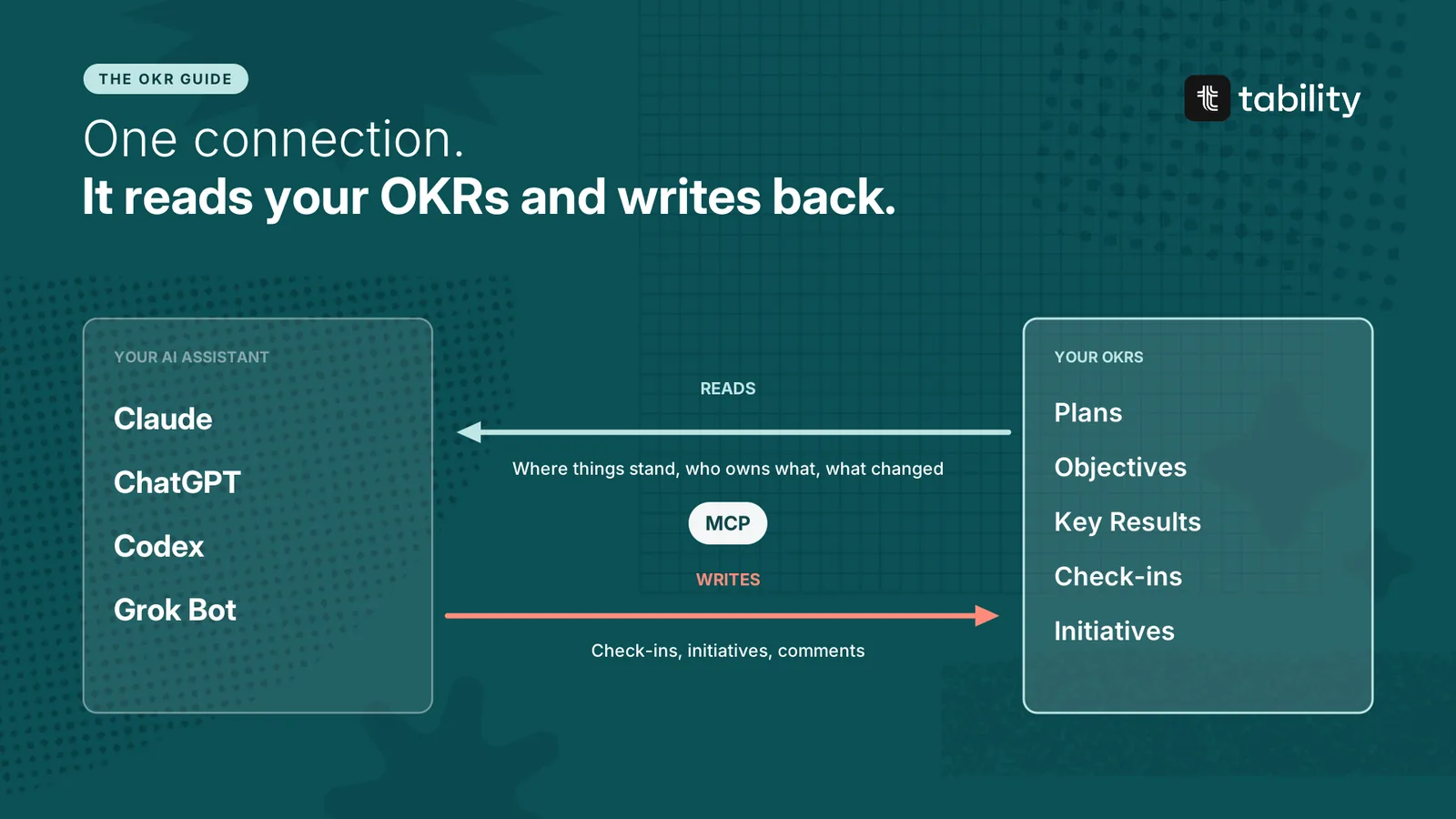
Reading. The assistant can look up plans, Objectives, Key Results, check-ins and initiatives. It can answer "where are we on the mid-market goal?" from live data, and it knows who owns what.
Writing. The assistant can post back: a check-in, a new initiative, a comment on an initiative. Work done in the assistant ends up where the rest of the company will see it.
With the Tability MCP server, the assistant can read user and workspace details, plans, Objectives, outcomes, initiatives, check-ins and comments. It can create outcomes, initiatives, check-ins and initiative comments. Workspaces with agents enabled can also create agents, link them to outcomes and initiatives, and schedule their runs.
Five things worth doing with it
1. Ask where things stand. "Which Key Results changed status this week, and why?" The answer comes from the check-ins, with the owner's own words.
2. Draft a check-in from several sources. This is where the connection pays off most.
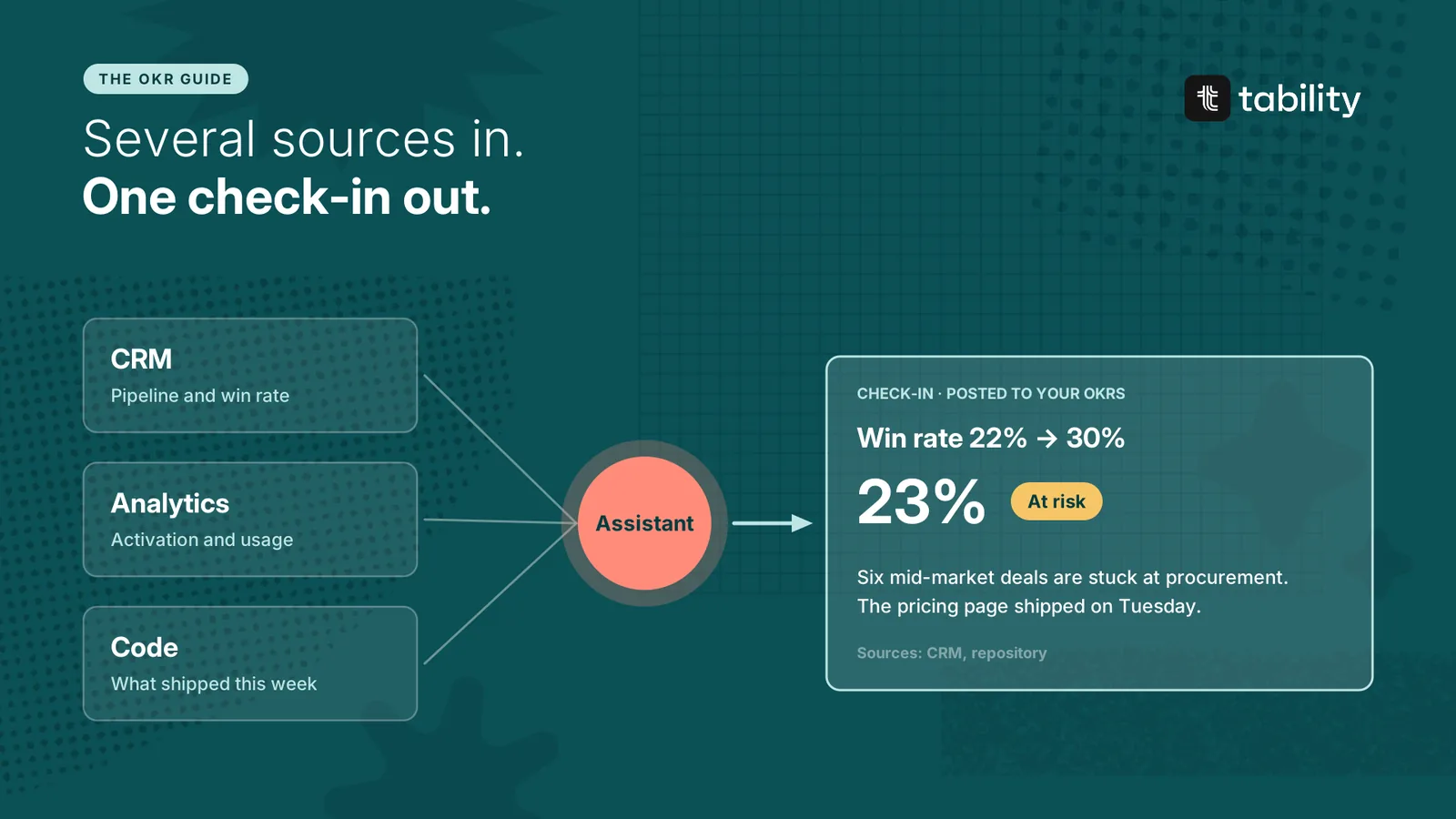
An assistant that is also connected to your CRM, your analytics and your code repository can pull the number, read what changed and draft the update. The owner reviews it and posts it. This is the "agent drafts, owner confirms" mode from the previous chapter.
3. Prepare a review. Ask for the reds, the repeated yellows and the asks across all teams, and you have the first draft of the monthly business review.
4. Give a working agent its goal. Before a coding agent starts on a task, it can read the Key Result the task is meant to move. When it finishes, it can log what shipped on the initiative.
5. Put it on a schedule. Once a prompt gives reliable results, run it every week before the review.
Prompts to start with
-
"Use Tability to show me who I am." This confirms the connection works.
-
"Show me all my active plans."
-
"What is the progress on our Q4 Objectives? List anything at risk or off track first."
-
"Who owns the win rate Key Result, and what did the last three check-ins say?"
-
"Draft this week's check-in for activation rate. Use the product analytics for the number and the repository for what shipped. Show me the draft before posting."
The last line of the last prompt matters. Ask to see a draft before anything is written until you trust the result.
Keep the access under control
The assistant acts as you. The connection signs in through your browser with your own account, so the assistant can see and change what you can. You should never need to paste an API token into a prompt.
Access is granted per person. In Tability, an admin enables API access for each user under Settings, then Users. Agent features are switched on separately in the workspace settings.
Use a dedicated user for shared agents. An agent that serves a whole team should have its own account with the permissions it needs and no more. Its actions are then easy to tell apart from a person's.
Read first, write later. Spend a week asking questions before you let the assistant post anything.
Label what agents write. A check-in posted by an assistant should say so, for the reasons in the previous chapter.
Setting it up
You need the server address for your workspace. Tability has three.
| Cloud | MCP server URL |
|---|---|
| US (default) | https://mcp.tability.app/mcp |
| EU | https://mcp-eu.tability.app/mcp |
| AU | https://mcp-au.tability.app/mcp |
The quickest route is the setup prompt: copy the prompt for your cloud from the setup documentation into your assistant and follow the steps it gives you.
Questions about connecting OKRs to AI tools
What is an MCP server? A standard interface that lets AI assistants read from and act in an application. One server works with every assistant that supports MCP.
Which AI tools can connect to my OKRs? Any MCP-capable client, including Claude, ChatGPT, Codex and Grok Bot.
Can the assistant change my OKRs? It can do what the server allows and what your account is permitted to do. With Tability that includes creating check-ins, initiatives and outcomes.
Is it safe? The connection uses your own sign-in and permissions. The main risk is letting an assistant write without review, so start with read-only questions and drafts.
Do I need this if my OKR tool has AI built in? The built-in assistant is faster for questions about your goals. The connection is for combining goals with your other tools and for giving agents that work elsewhere the context they need.