.png)
Your workspace already holds a lot of useful information: goals, KPIs, check-ins, initiatives, and the people responsible for them. The challenge is finding what matters and turning it into something you can use.
Tability's AI Mode helps you move from that information to a clearer decision, a meeting-ready report, or a proposed workspace update. You can ask questions in plain language, refine the answer, and choose what happens next.
Check the demo video below, then take a look at 8 use cases that we have outlined below.
Getting started with AI Mode
You'll need a Tability workspace with a Premium trial or subscription to try AI Mode.
- Sign into your account
- Click on AI Mode in the nav
- Start prompting!
See AI Mode in action below.
Tability AI Mode capabilities
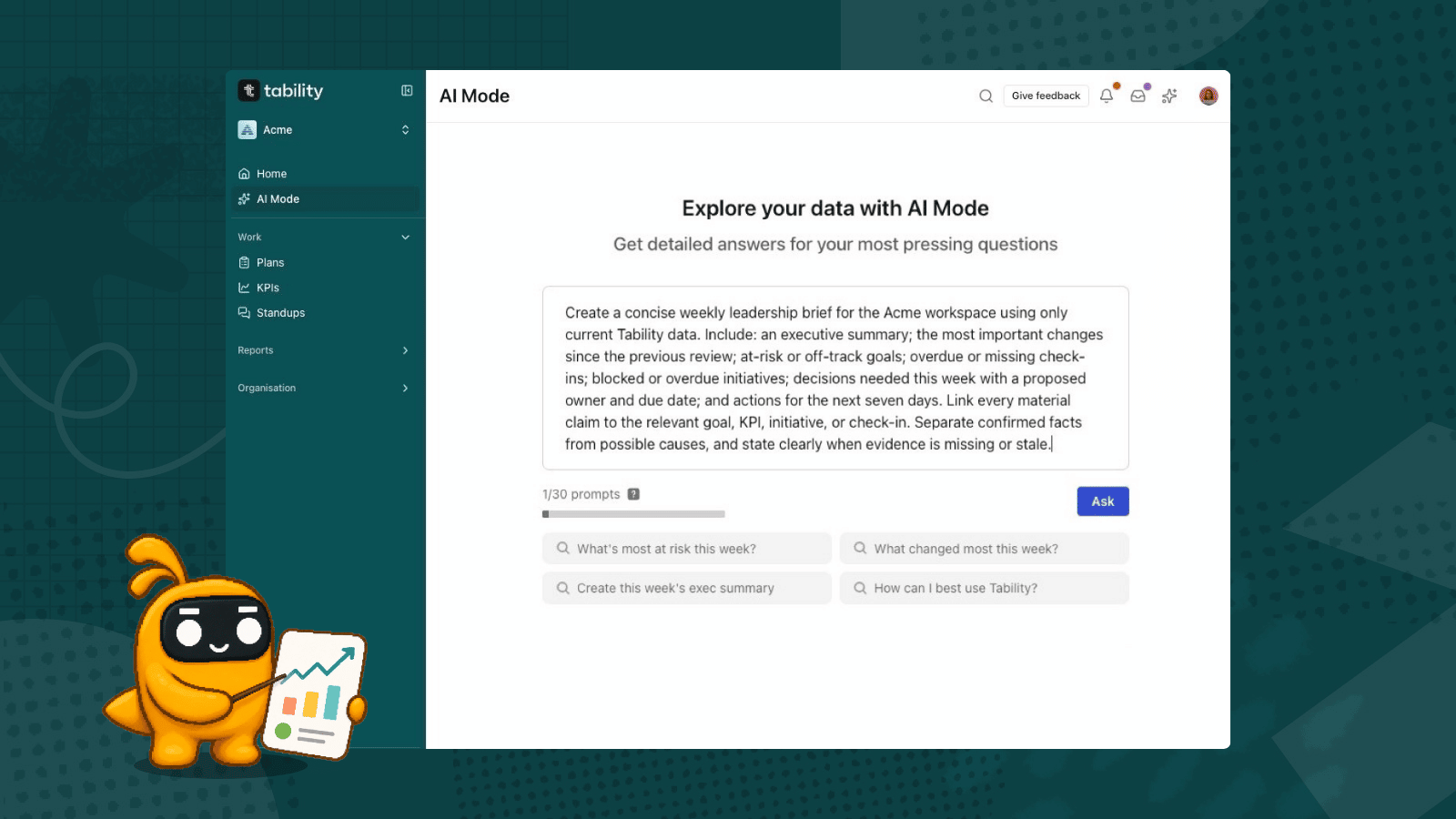
AI Mode comes with predefined prompts you can launch in one click, organised around three themes: Plan and improve, Lead my team and Review and report. You can also write your own prompts. AI Mode reads what’s in your workspace and turns it into the output you need.
Three outputs come up most often.
Create editable keynotes and decks
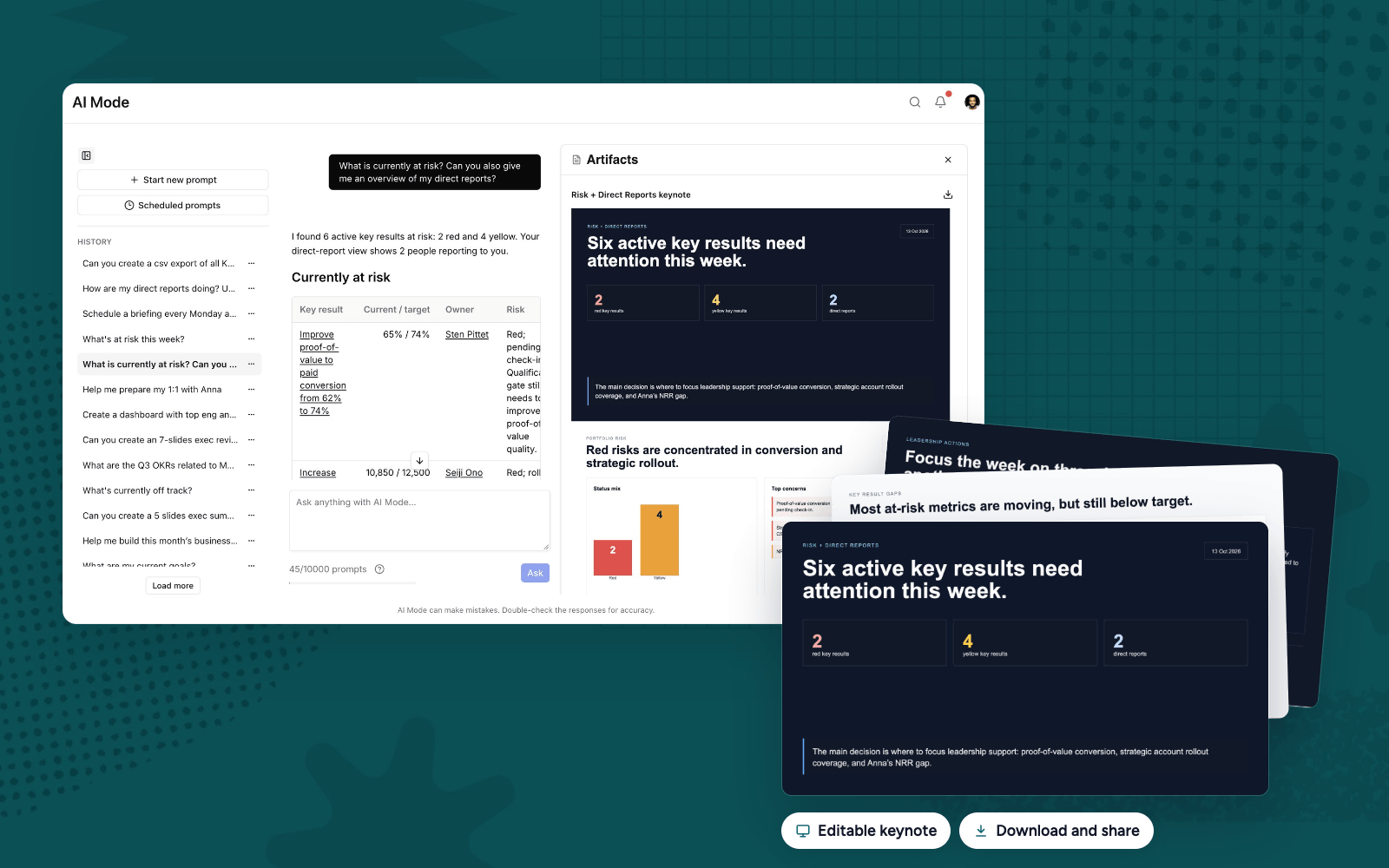
Ask what’s at risk this week and AI Mode reviews your key results, check-ins and initiatives to find the answer. When you need to share that answer, ask for a deck in the same conversation.
The keynote opens in the Artifacts panel next to the chat. Each slide is built from your workspace data: the at-risk key results with current values against target, a view per direct report, and the decisions leadership needs to make. You can keep refining it in chat (“add a slide on Mark’s open initiative”), then download it for your meeting.
The more context you give, the better the result. “A five-slide leadership briefing on proof-of-value conversion” will get you further than “summarise everything”.
Turn a conversation into a dashboard
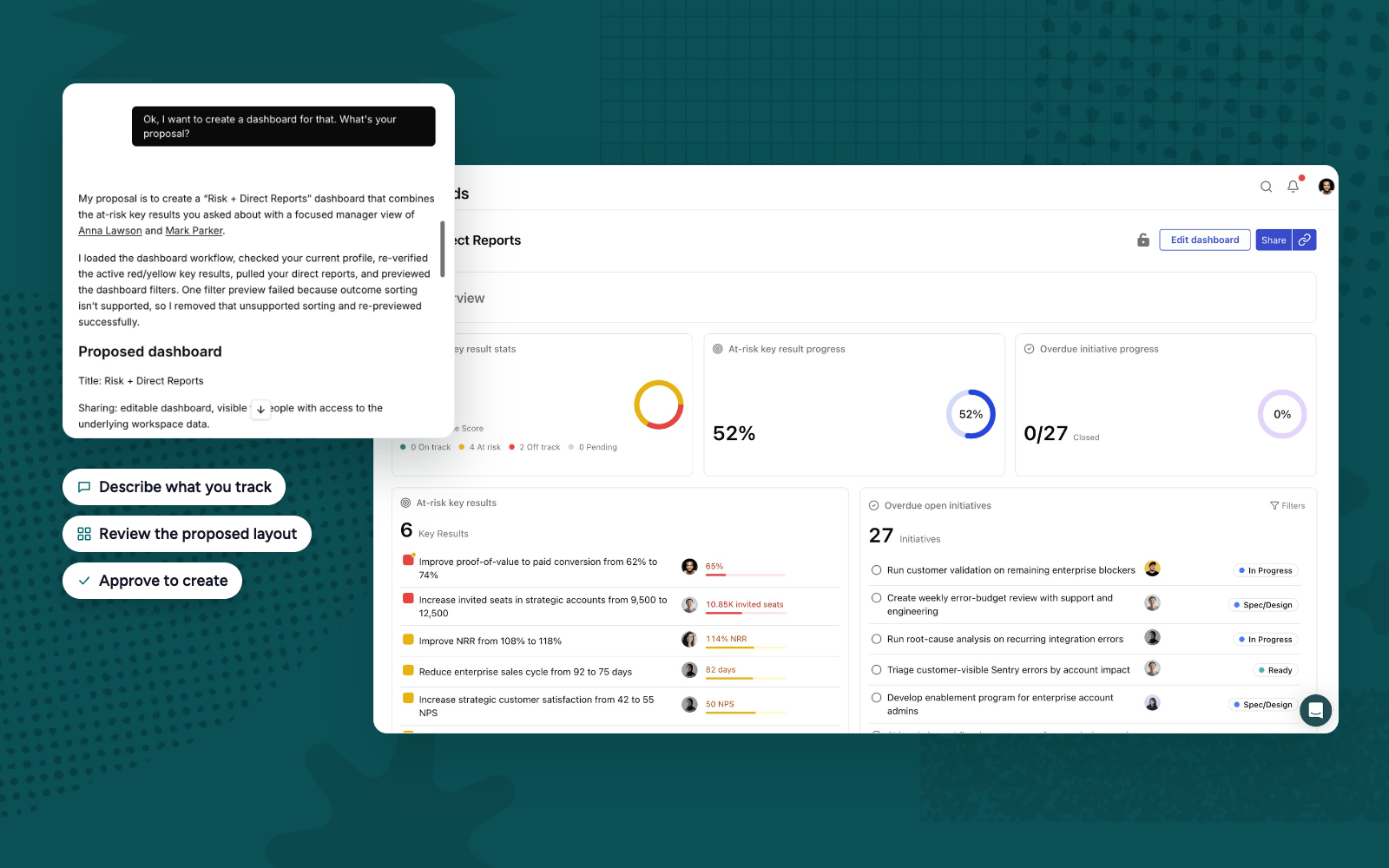
Once you know what you want to watch, ask AI Mode to make it permanent. Describe what you track and it proposes a strategic dashboard: the title, the widgets, the filters and who can see it.
Nothing is created until you approve. The proposal links to the existing key results, initiatives and KPIs it plans to include, so you can check the scope before it lands in your workspace. Once approved, you get a regular Tability dashboard you can edit, share and come back to every week.
Schedule recurring reports
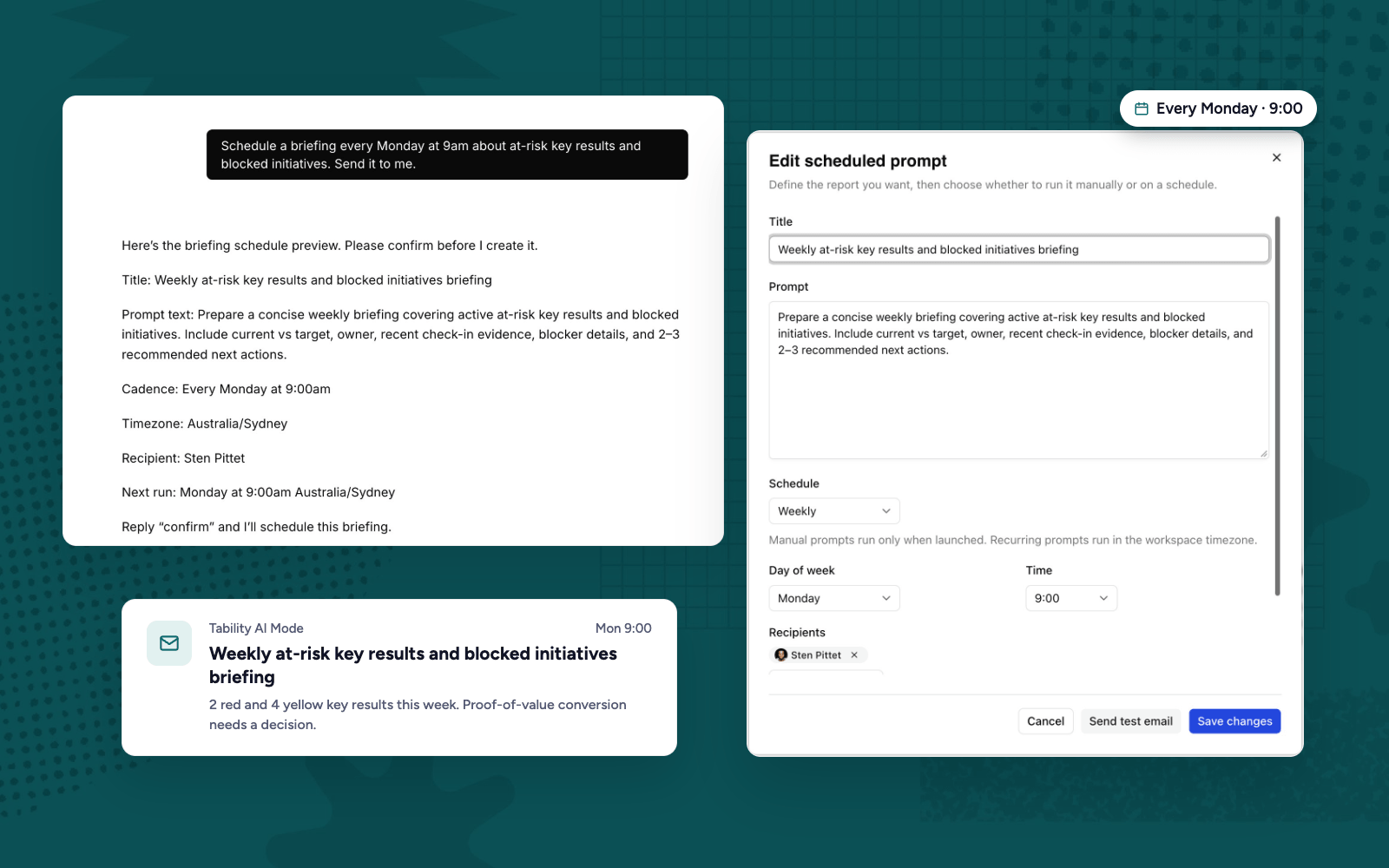
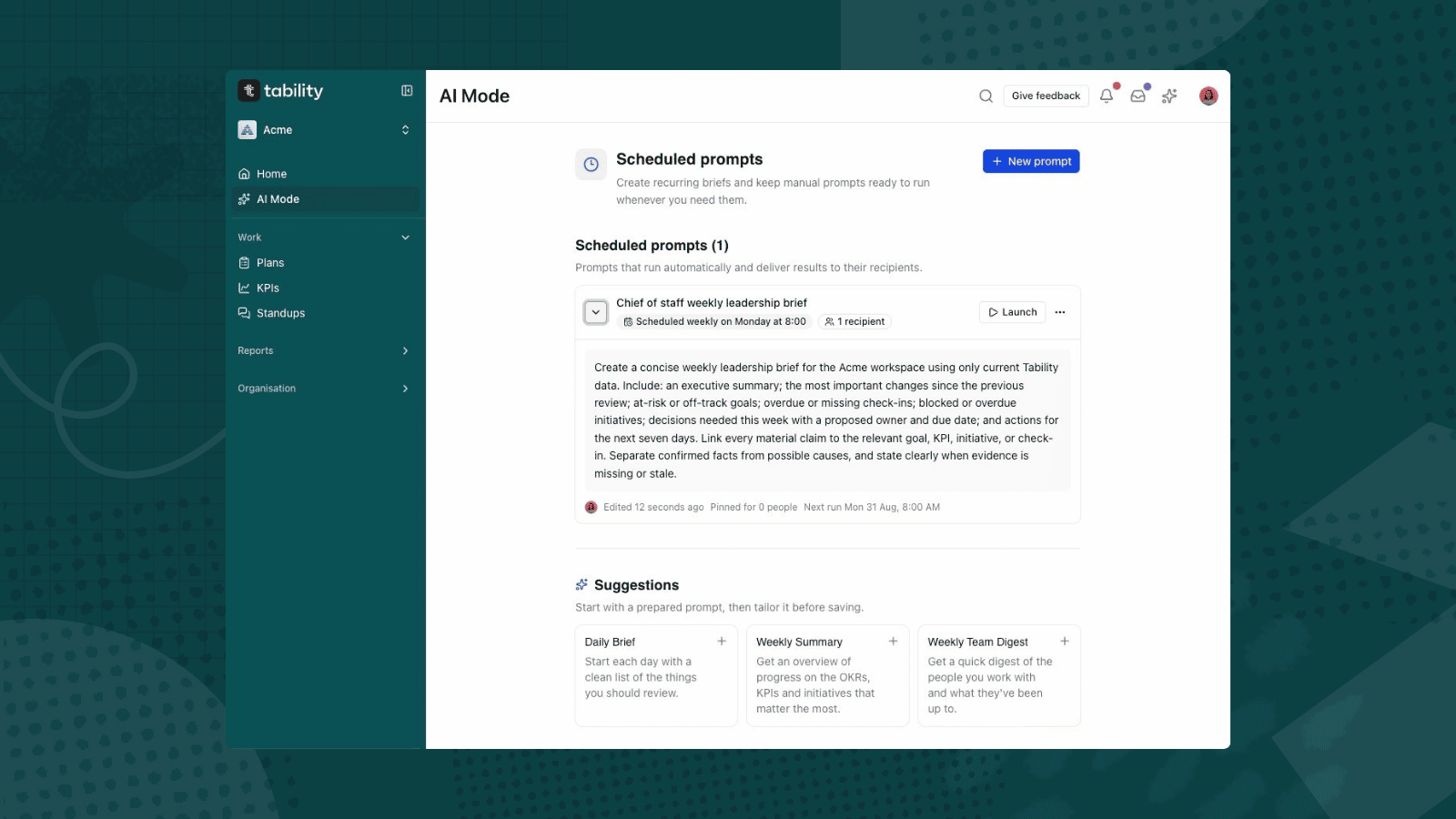
When a prompt is worth repeating, ask AI Mode to schedule it. “Schedule a briefing every Monday at 9am about at-risk key results and blocked initiatives. Send it to me.” is enough.
AI Mode shows a preview of the title, prompt, cadence, timezone and recipients, and waits for your confirmation. After that the briefing lives under Scheduled prompts. You can change the prompt, the day, the time or the recipients there, and send a test email before the next run.
Pick questions that stay useful over time. “What needs attention this week?” will still be useful in three months. A prompt tied to one specific meeting won’t.
And a lot more
Keynotes, dashboards and scheduled reports are where most people start. AI Mode works with anything in your workspace, so you can also use it to:
- Draft OKR plans from a set of priorities. It asks about scope and baselines before suggesting targets.
- Create KPIs and KPI views, or review existing ones to find the metrics that are below target or have stale data.
- Prepare 1:1s and team reviews using the reporting lines in your workspace.
- Write retrospectives from a completed plan’s key results and check-ins.
- Draft check-ins from the values and context you provide.
Anything that creates or changes a record in your workspace goes through the same preview-and-approve step, so you can try things without breaking anything. The use cases below have prompts you can copy to get started.
Simple AI Mode prompts to get you started
1. Find the OKRs, initiatives and KPIs that need your attention
Start with a question you would normally answer by opening several plans and reading through updates.
What’s most at risk this week? Review recent check-ins and linked initiatives, explain the main blockers, and highlight where I can help.
AI mode can investigate key results and their supporting work to identify risks and explain the evidence behind them. You can narrow the conversation to a team, person, or plan, then ask follow-up questions.
Try asking: “Which of these needs a decision from me?” or “What changed since the previous check-in?”
2. Create a report, deck, or chart
Once you understand the situation, ask AI mode to turn it into something you can share.
Create this week’s executive summary deck. Cover progress, risks, and decisions needed. Include charts where they make the findings easier to understand.
AI mode can create reports, presentation decks, charts, and CSV artifacts in the chat. Choose the format that fits the conversation: a short report for a written update, a deck for a meeting, or a CSV when you need more detailed data.
Tell it who the audience is and what they need to decide. “A five-slide leadership briefing” gives it a more useful direction than “summarise everything.”
3. Prepare for team reviews and one-on-ones
Use AI mode to bring together someone’s goals, progress, and blockers before a meeting.
Prepare a review deck for my direct reports. Create one slide per person covering progress, blockers, and support needed. Flag missing or stale updates.
AI mode uses the reporting relationships available in your workspace. You can also name specific people or teams when you want a different scope.
Follow up with: “Turn this into a one-on-one agenda for Anna” or “What should we discuss together as a team?”
4. Design a dashboard around your needs
You don’t need to know which widgets to choose before starting.
Help me design a dashboard for engineering and sales. I want headline KPIs and this quarter’s key results and initiatives, with related lists side by side.
AI mode can help clarify what you want to track, suggest widgets, and propose a layout. Dashboards can include individual KPI cards, selected KPI lists, key results, initiatives, profiles, and charts.
Review the proposed records, filters, and sharing settings before approving creation. Existing items should be linked in the proposal so you can check exactly what will be included.
5. Turn priorities into a plan
When you have a direction but haven’t worked out the goals, use AI mode as a planning partner.
Help me turn our customer retention priorities into next quarter’s OKRs. Ask me about the scope and desired outcomes before suggesting targets.
Work through the objectives, measurable key results, and initiatives together. Provide known baselines, constraints, and ownership so the proposal reflects your situation.
Once you’re happy with the preview, approve it to create the plan in Tability.
6. Make sense of your KPIs
Ask AI mode to inspect the metrics behind your goals.
Review our sales KPIs. Which are below target, which have stale data, and which should we discuss in our next review?
It can look up KPI values and targets, help you select metrics for a dashboard, and propose changes to KPIs or KPI Views.
Be clear about the scope when names overlap. For example, specify the owner or team when two metrics are both called “Revenue.”
7. Capture updates and lessons
Use the conversation to prepare a progress update from facts you provide, or look back over a completed plan.
Prepare a retrospective for our Q3 sales plan. Cover wins, misses, specific lessons, and recommended priorities for next quarter.
AI mode can review the plan’s key results and check-ins to draft the OKR retrospective. You can refine it in chat before deciding whether to save it.
For check-ins, provide the actual value and relevant context. AI mode can help write the update, but it shouldn’t invent missing progress.
8. Make useful briefings recurring
When you find a prompt worth repeating, ask to schedule it.
Schedule a briefing every Monday at 9am about at-risk key results and blocked initiatives. Send it to me.
AI mode will propose the prompt, cadence, timezone, and recipients for you to review before creating the schedule.
Choose a focused question that stays useful over time, such as “What needs attention this week?” rather than a one-off request tied to a specific meeting.
The most AI-native OKR platform
AI Mode is one part of a bigger picture. Tability brings AI into every step of running your goals, from setting them to reporting on them, and it’s a top pick among the OKR platforms with AI features.
Everything runs on the data your team already keeps in Tability, and nothing changes in your workspace without your approval. You see a preview of every plan, dashboard or schedule before it’s created.
Start a trial, open AI Mode and ask:
What should I pay attention to this week? Use my workspace data, explain your reasoning, and link to the relevant items.

.jpg)