There’s a point where dashboards stop helping.
You’ve got check-ins. Confidence scores. Progress updates. Dependencies.
But answering simple questions still takes too long:
- What’s actually at risk?
- What changed this week?
- Where should we focus?
- Are we aligned?
We just built a new AI Mode in Tability which solves that issue.
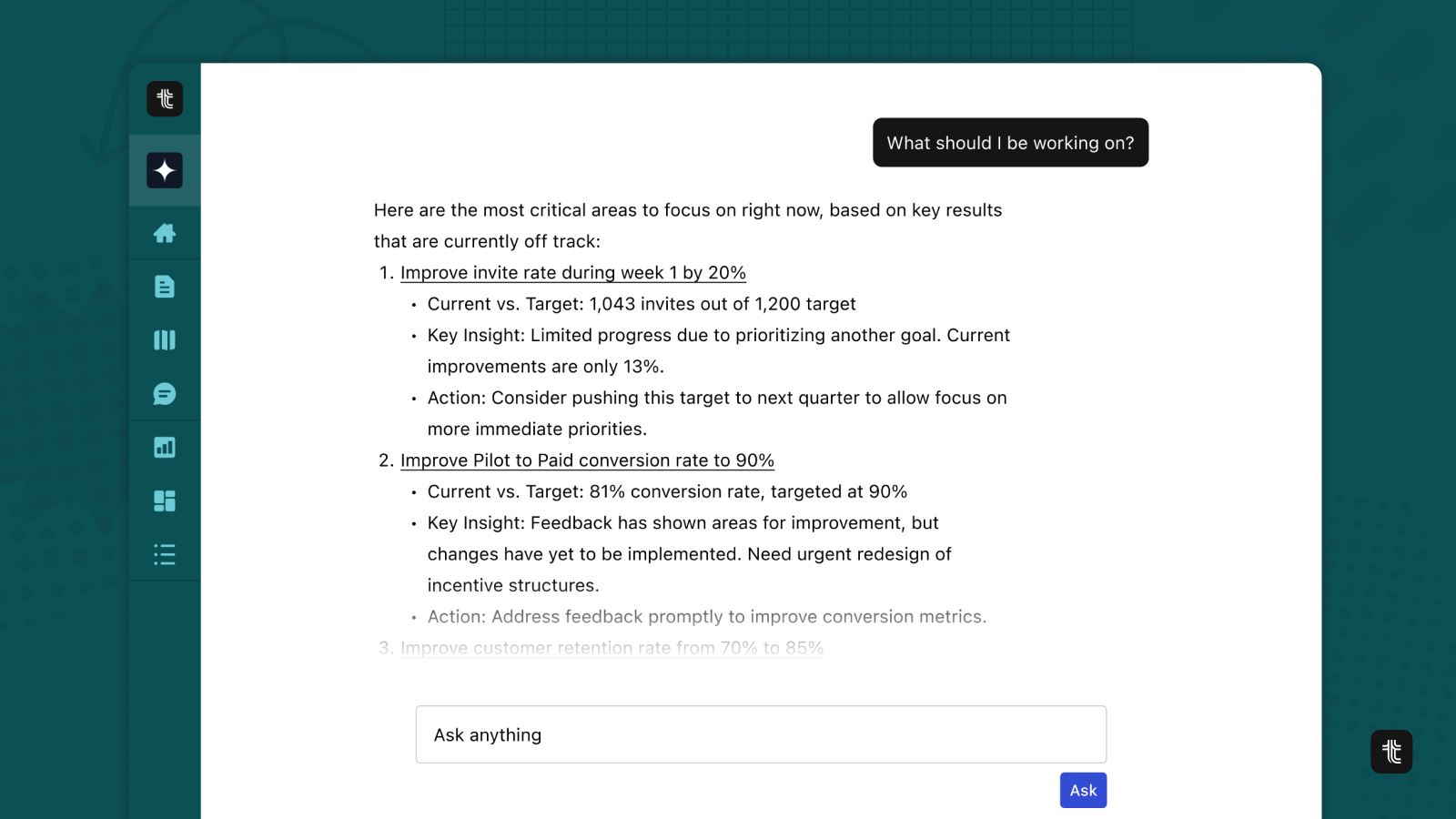
Instead of clicking through plans and digging through updates, you can ask questions in plain English – and get answers grounded in your real OKR data: objectives, key results, ownership, trends, and check-ins.
It’s not a generic chatbot.
It understands your structure, your plans, and your context.
The better your prompt, the better your output.
Below are examples to get you started — from quick questions to structured, power-user prompts.
How AI Mode works
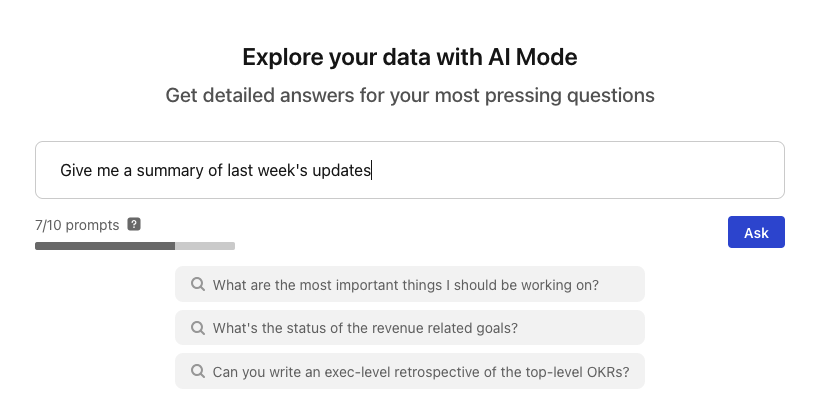
AI Mode is powered by a backend streaming endpoint that combines LLM reasoning with secure, workspace-scoped data access.
At a high level, each request follows this flow:
- Authenticate + authorize the user, verify AI Mode is enabled, and load workspace membership context.
- Build the model context from your prompt, recent chat history, and system instructions.
- Call the model with a fixed set of backend “functions” (search/get/create actions for plans, objectives, key results, initiatives, check-ins, and members).
- If the model requests a function, execute it server-side with normal Tability permissions and return the result back to the model.
- Repeat function calls as needed (up to a safety limit), then stream the final answer token-by-token to the UI via Server-Sent Events (SSE).
Security is enforced at every step:
- Data is scoped to the current workspace context.
- Queries run with the current user’s membership and permissions.
- Standard policy checks are applied before reads/writes.
- Function access is allowlisted (the model cannot call arbitrary code or databases).
- Responses are grounded only in records the user is authorized to access.
This gives AI Mode the best of both worlds: natural-language interaction plus reliable answers grounded in live OKR data, without bypassing access controls.
AI Mode vs Tability MCP Server
Tability MCP Server is Tability’s Model Context Protocol (MCP) integration layer.
It exposes Tability as a secure set of AI-callable tools (like searching plans, key results, initiatives, members, and check-ins), so external AI clients/agents can query and act on OKR data using the current user’s permissions and workspace scope.
In short: it lets you use Tability data safely from outside the Tability app, in any MCP-compatible AI environment.
Both the AI Mode and Tability MCP Server are permission-aware interfaces over the same core Tability data/functions, but they serve different usage patterns.
Bottom line: AI Mode is the fastest way to "talk to your OKRs" inside Tability, while the MCP Server is the programmable way to bring the same secure Tability context into your own AI tooling.
15 high-impact prompts by role and use case
🧭 For leadership
1. Executive snapshot
“Give me a summary of our Q1 goals — wins, risks, and overall trajectory.”
2. Risk radar
“Which key results are most likely to miss this quarter?”
3. Confidence shifts
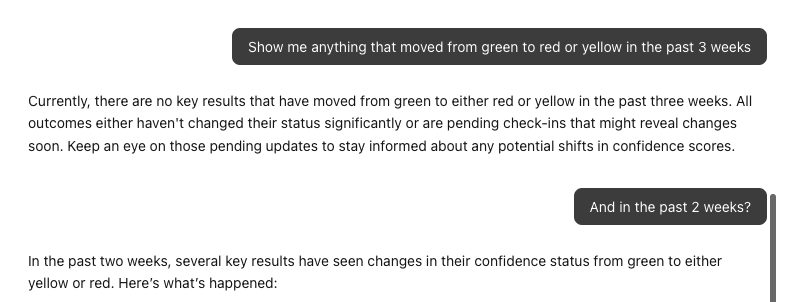
“What changed in confidence scores over the last two weeks?”
4. Strategic misalignment
“Where are teams working toward similar outcomes but measuring different success metrics?”
5. Focus guidance
“If leadership could only focus on three goals this week, which should they be?”
📊 For managers

6. Weekly team summary
“Summarize the latest check-ins for the Product team.”
7. Blocker detection
“Which objectives are currently blocked and why?”
8. Momentum analysis
“Which KRs have stalled over the last three updates?”
9. Ownership clarity
“Show me goals with inconsistent updates or unclear ownership.”
10. Prioritization help
“What should this team focus on next week to maximize progress?”
👩💻 For individual contributors

11. Personal alignment
“How does my work ladder up to company objectives?”
12. Weekly focus
“What’s the most impactful KR I can move forward this week?”
13. Check-in drafting
“Draft a check-in update based on recent progress and blockers.”
14. Trend awareness
“How has my KR progressed over the last month?”
15. Impact visibility
“Summarize the measurable impact of my current goals.”
Short prompts like these replace navigation with clarity.
But where AI Mode becomes truly powerful is when you design the output you want.
3 advanced structured prompts (power user mode)
Longer prompts let you control scope, structure, format, and audience.
Instead of asking a question, you’re writing a brief.
Risk report with mitigation plan
Identify all KRs below 60% confidence.

Output:
- Ranked list by severity
- Root cause summary (max 3 sentences each)
- Proposed mitigation actions
- Flag cross-team dependencies

Keep the tone direct and action-oriented.

Prepare short forwardables for the owners of the KRs
OKR quality audit
Review our quarterly OKRs against these criteria:
- Measurable
- Outcome-focused
- Clear ownership
- Realistic scope

Output as:
- Table with score (1–5) per criterion
- Short diagnostic note per objective
- Summary of recurring weaknesses

Do not rewrite them – only assess.
Exec-ready retrospective
Create an executive retrospective for [Plan Name]

Use only available workspace data (plans, objectives, key results, check-ins, metrics, projects, dependencies, decisions). If evidence is missing, write: Data not available.

Formatting rules (strict):
- Use Markdown headings.
- Do not produce long bullet lists.
- Max 3 bullets per section (except checklists: max 6).
- Prefer: 1 short framing paragraph, then compact table, then up to 3 bullets.
- Keep paragraphs to 2–4 lines.
- Use labels: ✅ On track, ⚠️ Risk, ❌ Off track, 📌 Decision.
- End with “Reader TL;DR” (max 3 bullets).

Traceability rules (strict):
- Every non-trivial claim must be justified.
- Link real workspace items whenever possible
- If no source exists, write: Unverified (no linked item).

Output sections in this exact order:

## Executive Summary
Short paragraph + up to 3 bullets with citations.

## KRs summary
Table:
KR | Target | Actual | Status | Commentary

## KR Missed or Partially Achieved
Short paragraph + table:
KR | Gap | Root Cause | Recovery Option

## Key Risks and Root Causes
Table:
Risk | Symptom | Root Cause | Owner | Next Mitigation

## Cross-Team Dependencies
Table:
Dependency | Helped/Slowed | Team | Timeline Effect

## Customer / Business Impact
Short paragraph + up to 3 evidence-based bullets.

## Top 5 Lessons Learned
Numbered list of exactly 5 lessons, one sentence each.

## Recommended Priorities for Next Quarter
Table:
Priority | Why now | Expected Impact | Owner

## Executive Decisions Needed
Up to 3 bullets, each starting with 📌.

## Reader TL;DR
Up to 3 bullets.
Embracing the AI shift
AI Mode isn’t about replacing dashboards. It’s about removing friction between data and decisions.
Short prompts give you clarity and structured prompts give you leverage. Instead of navigating your OKRs, you can now talk to them and explore your data to get deeper insights.
And instead of reporting on progress, you can start acting on it.
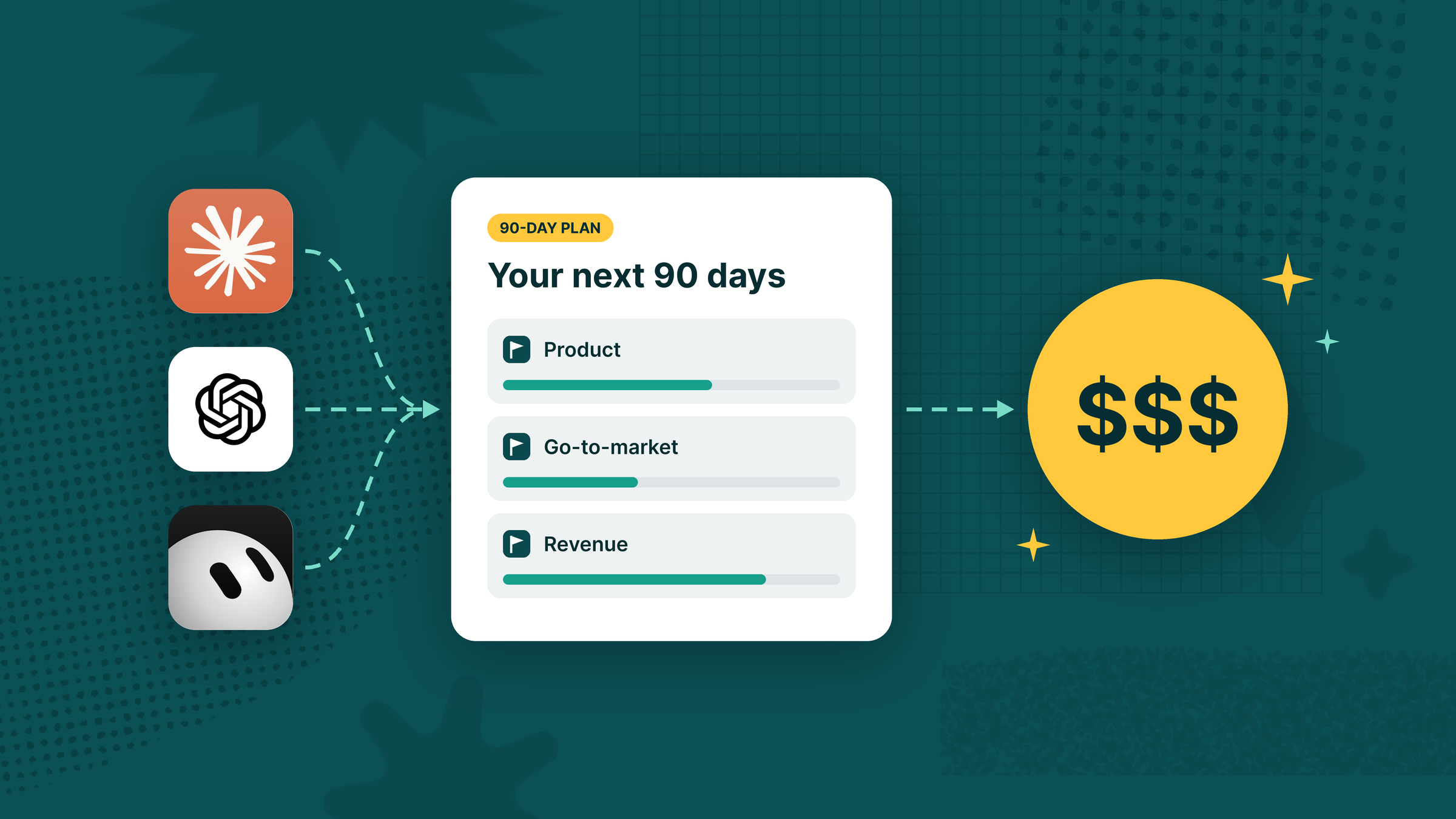
With AI Mode and its MCP Server, Tability is now the best OKR software with AI.
How to try AI Mode
AI Mode will be a paid add-on for Premium accounts, but it is currently free to use during the beta until the end of March.
- Sign up for a Tability account at https://www.tability.io
- Start your Premium trial
- Go to AI Mode and start prompting!

.jpg)

.png)