
Docs & knowledge base

.png)



Plan and brainstorm in Miro, bring your OKRs to life in Tability
Easily connect to all of your apps using Zapier, and create check-ins on your goals and OKRs automatically.
Miro is brilliant for getting ideas out of heads and onto a canvas. It’s where you brainstorm, run workshops, map dependencies, and sketch out OKRs with your team. But once the workshop is over, there’s a gap: sticky notes don’t track themselves.
This page explains how the Miro → Tability workflow helps you keep that momentum going—without copy-pasting, chasing updates, or rebuilding reports every week.
Miro is built for collaboration in the moment. It isn’t built for ongoing OKR tracking. That usually means:
Tability picks up where Miro stops—turning your static board into living, trackable goals with owners, cadences, and reporting baked in.
Workshop your strategy, cluster ideas, and agree on your Objectives and Key Results. Keep the creativity and speed Miro is great for.
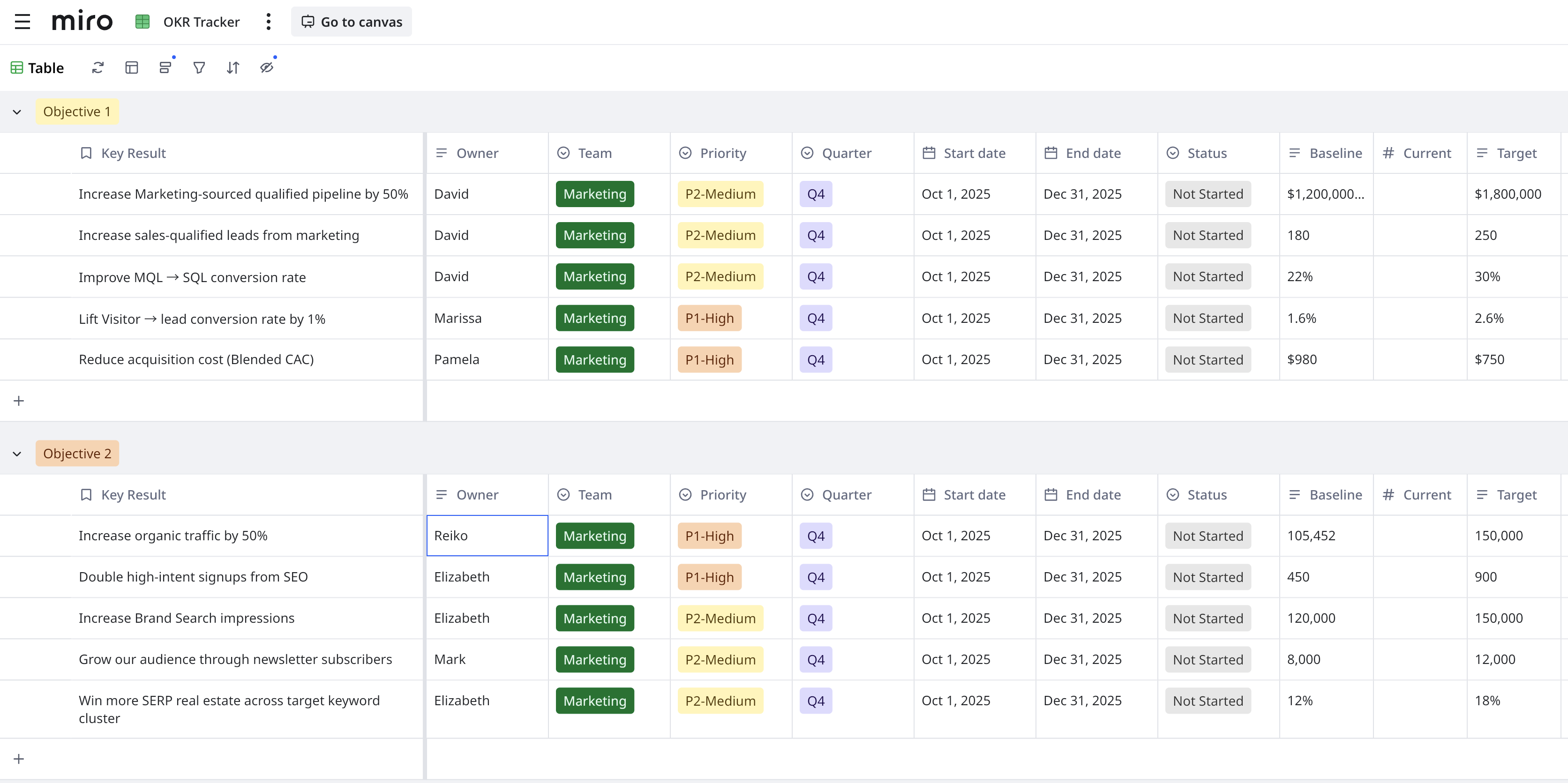
When you’re done, take a clean screenshot of the OKR section of your board. Tip: zoom so your Objective titles and KR details are readable.
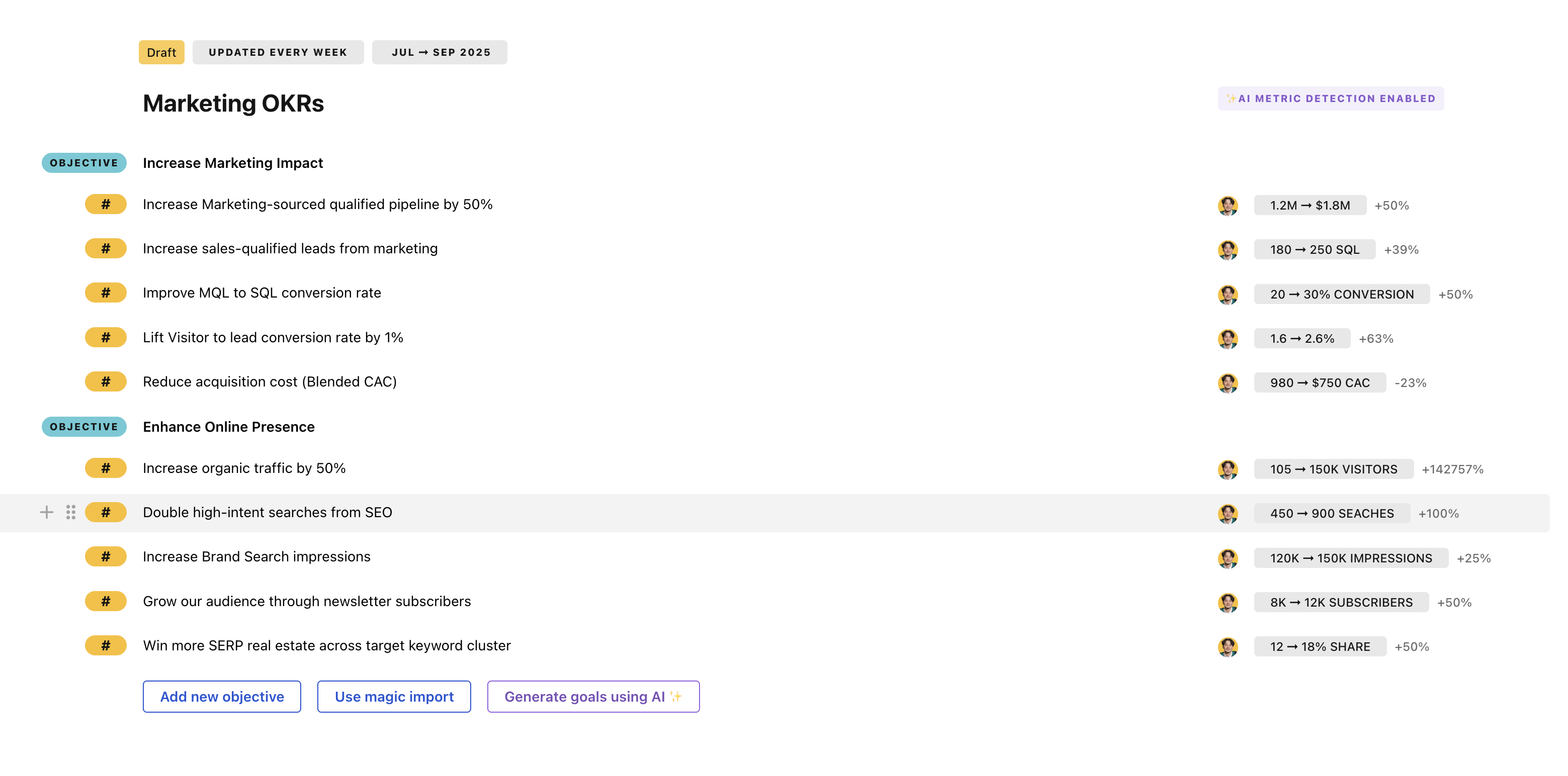
Upload the screenshot to Tability and create your OKRs. In minutes, your goals are live in a platform built for tracking, reminders, and reporting—not just whiteboarding.
Voilà—your OKRs are now a living thing, not a picture on a board.
Set up your session for success with these two essentials:
While Miro is great for brainstorming, but beyond the planning stage, you won't get much. With Tability, you'll get all the processes and formatting already built in, so it feels like the platform is doing the heavy-lifting for you.
Assign each KR to an owner, set a weekly or fortnightly check-in, and let Tability nudge the team—no more chasing.
Make quick updates, add context, and see how confidence and metrics change over time.
See status by Objective, team, or initiative. Spot risks early with colour-coded status and trend lines.
One-click summaries for leadership, customers, or the board. Export or embed where your stakeholders live.
Get updates and summaries in Slack, and embed live OKRs in tools like Confluence or Notion so context is always nearby.
Do I have to screenshot, or can I type my OKRs directly?
You can do either. Many teams like the screenshot step because it creates a simple hand-off from the workshop.
What if my screenshot is messy?
No stress—use it as a visual reference while you create clean Objectives and KRs in Tability. You can also export your OKRs into a CSV and import that way. Worst case, you can manually input into Tability's plan editor which is quick and intuitive too.
Can I keep using my Miro board after import?
Absolutely. Keep the board for context and discovery. Link it from your Objective description so the team can jump back to the original thinking.
How do reminders work?
Choose your cadence and Tability will prompt owners to check in, then roll those updates into team and exec views.
Managing OKRs can be a hassle when your data is scattered across different tools. Pulling performance metrics or progress updates from various platforms is time-consuming and repetitive. Worse yet, you end up duplicating work—updating your OKRs in one place and entering the same data elsewhere. It’s a frustrating cycle that slows you down and distracts from focusing on results.
More often than not, this just leads to teams not updating their OKRs and letting them collect dust. It's just too cumbersome and distracting from the task at hand.
That's why teams trust Tability. Tability makes this part easy, by bringing all of your data into one place.
Using data connectors you can pull data from the apps where you do your work and where you collect data.
Using Tability data connectors, you can have live data in your OKRs at all times. Once you add your data connector as a data source for an outcome/Key Result, Tability can:
Example:

Once you have your data sources connected, you can enable auto-sync on your key results. What this does is it automatically creates check-ins on your Key Results so that you have the latest data in Tability at all times.

Connecting your data connectors to Tability is easy and takes only a few minutes:

For more info on how to set up data connectors and how they work, visit our user guide.
Automate check-ins by connecting to data points via Zapier. Every time an action is performed in one of your apps, Tability creates a check-in for you!


Where are we now, and how far do we have to go? Tability shows you the entire journey, compared to your progress in real time.
Adding your analysis helps your team understand the numbers, and fosters conversations to start around what’s most important in your org.
.png)
Plan and brainstorm in Miro, bring your OKRs to life in Tability
Easily connect to all of your apps using Zapier, and create check-ins on your goals and OKRs automatically.
Free 14-day trial · No credit card required · Up and running today


.svg.png)


