Most managers start their day the same way: opening five tabs, skimming three dashboards, scrolling two Slack channels, and trying to piece together what actually moved overnight.
It takes 20-30 minutes before you have any real sense of where things stand. By then you're already late to your first meeting.
Data isn’t the issue. The problem is putting all the data together in a concise update.
The reporting tax nobody talks about
Every team pays a significant tax to stay informed. You either:
- Spend 30 minutes each morning digging through tools yourself
- Wait for a weekly status meeting where half the updates are stale
- Ask someone on your team to put together a summary, which costs their morning instead of yours
None of these are great. The first burns your time, the second burns everyone's time, and the third just shifts the problem to someone with less context than you.
The irony here is that most of what you need to know every day is the same questions, asked in the same shape, about the same goals. You just need to know what’s different today.
It's repeatable work. It should be automated.
What a good daily report actually looks like
Before we get to the how, it's worth naming what you're actually after. A useful morning briefing answers three questions:
- What changed yesterday that I need to know about?
- What's at risk, and who owns it?
- What should I pay attention to in the next 24 hours?
That's it. No 15-page PDF, no dashboard tour. Three questions, answered in a couple of paragraphs, waiting in your inbox when you open your laptop.
How to get automated daily reports with scheduled prompts in Tability
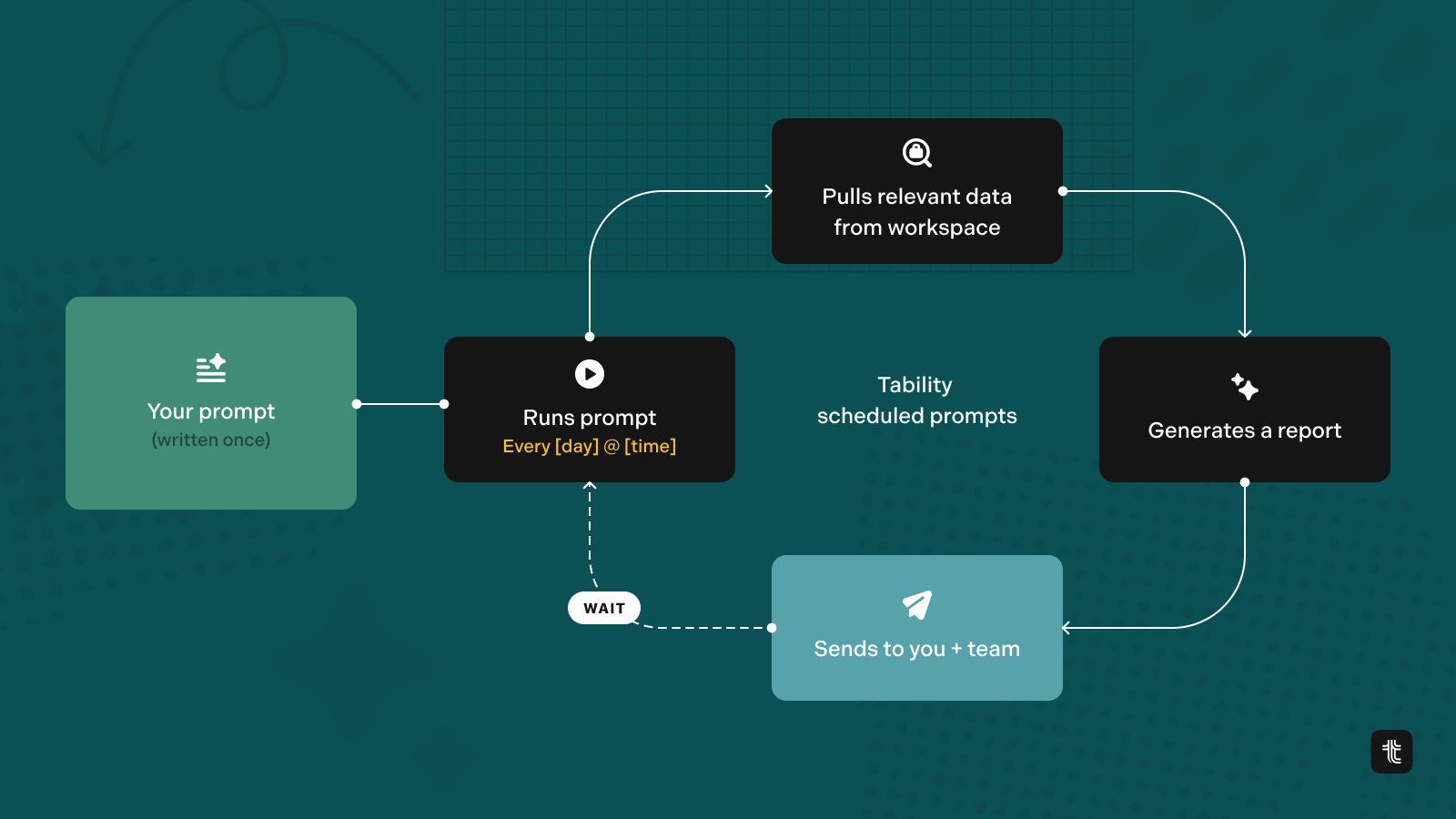
We recently introduced AI Mode in Tability to let you ask questions about your OKRs like you would ask your chief of staff.
Scheduled prompts let you go one step further. You can save a prompt and tell Tability to run it against your OKRs on whatever schedule you choose. The answer lands in your inbox.
No dashboards to check. No meetings to schedule. No waiting time. Just the summary you'd have asked for anyway, delivered before you start your day.
Here's how to set one up.
Step 1: Write the prompt you wish someone would answer
Open Tability and head to the AI Mode. Use the prompt below as your starting point.
Write me a morning brief with 5 sections:
- Highlights: 2 sentences to sum things up
- Key Results Status: provide updates on the top three high-impact key results. Highlight any that are off track or at risk, using 🚨 for high-risk items. Include any recent trends or changes in metrics.
- Initiative Updates section: identify any initiatives that are currently blocked, require immediate action today, or have recently overcome significant hurdles. Use ⚠️ to indicate blocked initiatives and describe these situations narratively.
- Critical Metrics section: report on current trends in sales, customer retention, and satisfaction metrics. Highlight any significant month-over-month or week-over-week changes, using 📊 to represent metrics, and provide the insights in written paragraphs.
- People section: list the essential contacts you should reach out to today. Specify why they are relevant and what specific topics need to be discussed to ensure alignment or unblock progress, and structure this guidance in clear prose.

Presentation rules:
- Present the information in a narrative format suitable for email, without using tables.
- Only use bold, links, and list elements to format the text
Run it once manually. Read the output.
Tweak the wording until the response is the shape you want: shorter, more specific, focused on a particular plan, whatever fits. This is the most important step. A scheduled prompt is only as good as the prompt you schedule.
(Note: this may feel a bit more than the 3 questions mentioned above, but it's because we've organised it into themes)
Step 2: Schedule it
Once the prompt gives you what you want, copy it.
Open a new tab, then go to AI Mode > Saved prompts.
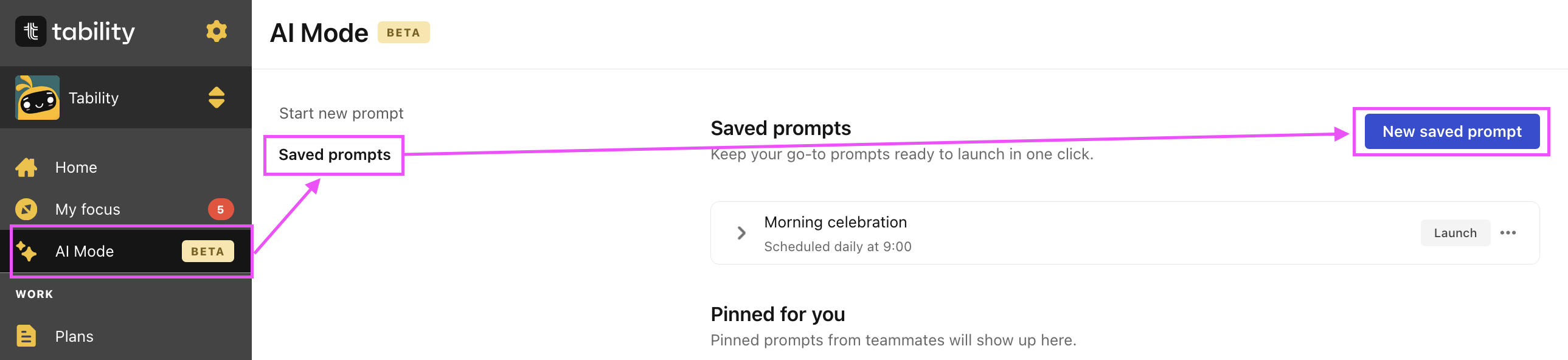
Create a new saved prompt using what you prepared earlier and then set it on a schedule.
Pick the frequency that matches how you actually work: daily at 7am for a morning briefing, Monday mornings for a weekly recap, Friday afternoons for an end-of-week roundup.
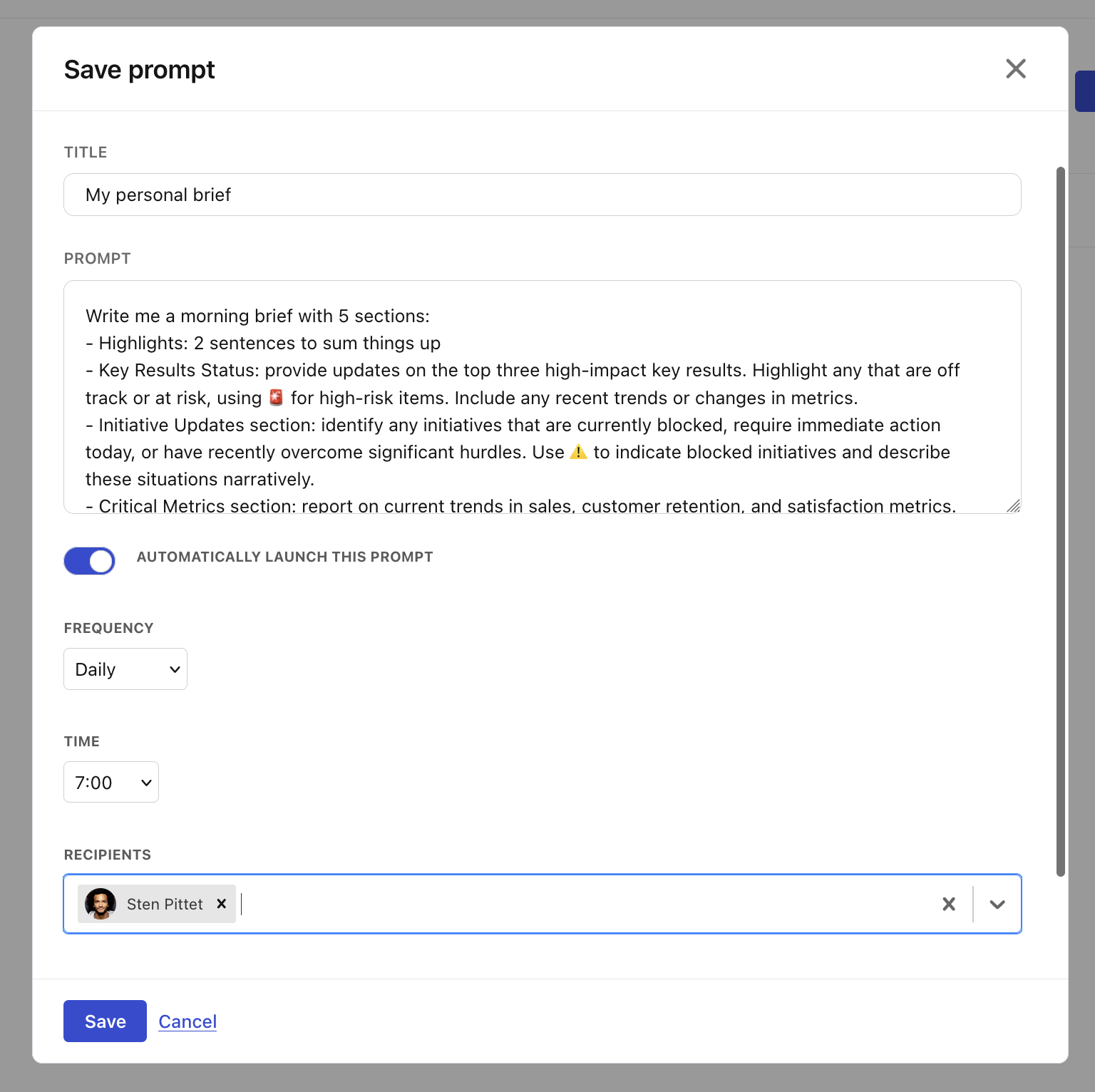
Select yourself as the recipient, and add any other person that would benefit from it.
Step 3: Share the template, not the output
Once you've got a prompt that works for you, share the template with your team, but encourage each person to rewrite it for their own patch.
Your VP of Engineering shouldn't get the same brief as your Head of Sales. They care about different outcomes, different risks, different timeframes. A shared template gives everyone a starting point; personalising it is what makes the brief actually useful.
Think of it as giving each leader their own analyst, not sending the same memo to the whole org.
Pro tip: you can ask the AI Mode to focus on specific KRs or specific plans to narrow down the scope.
Step 4: Refine after a week
Your first scheduled prompt won't be perfect. After a few days, you'll notice things that you want to adjust. Maybe the summary is too long, maybe it's missing context on a specific initiative, maybe you want it to flag certain keywords.
Go back, edit the prompt, let it run again. Treat it like hiring a new analyst: you spend a week training them on what "good" looks like, and then they just do the work.
What this unlocks
The obvious win is time saved. 30 minutes a day, across a leadership team, adds up fast. With scheduled prompts all this time goes down to zero.
But the other advantage is personalisation. Every person finally gets a brief built around their questions.
A generic dashboard has to serve everyone, which means it serves no one particularly well. The CEO wants a two-paragraph summary of company-wide risk. The VP of Engineering wants to know which product initiatives are slipping and why. The Head of Sales wants pipeline coverage against quota. The chief of staff wants a cross-functional risk digest before the Monday exec meeting.
With scheduled prompts, each of them can write the prompt that answers their question, on their schedule, in their inbox. Same underlying data, completely different briefings.
That's the shift. Instead of one dashboard that everyone has to interpret, you get N personal analysts – one per leader – each trained on exactly what that person needs to see. A new VP can set theirs up in ten minutes. When priorities change, they rewrite the prompt. No BI team, no ticket, no dashboard redesign.
And you get to stop opening five tabs before coffee.
Try it this week
Pick one question you ask yourself every Monday morning. Turn it into a prompt. Schedule it. See what shows up in your inbox next week.
If you're already on Tability, scheduled prompts are already available today. If you're not, you can start a free trial at tability.io and have your first scheduled report running in under ten minutes.

.png)
.jpg)



.png)