OKRs as we know them are dead. The manual check-ins, the stale dashboards, the Friday scramble before an exec review.
The era of agentic OKRs is here. And it changes how your team runs goals entirely.
OKRs don’t fall apart because the goals were bad. They get ditched because people resent the operational drag of keeping up with them.
That’s what happens when you force people to use tools that aren’t designed for the job. This will 100% happen when you use a convoluted spreadsheet, or try to turn Jira issues into goals. But you’ll get the same problem with OKR management platforms that aren’t designed for modern teams.
Updates get skipped, dashboards go stale, and the whole thing quietly collapses under the weight of everything else going on.
We've been building towards a different model at Tability. One where AI handles more of the routine work so your team can stay focused on decisions, not administration. OKRs are dead – long live agentic OKRs.
Here’s what the new world looks like:
1. The Tability MCP server
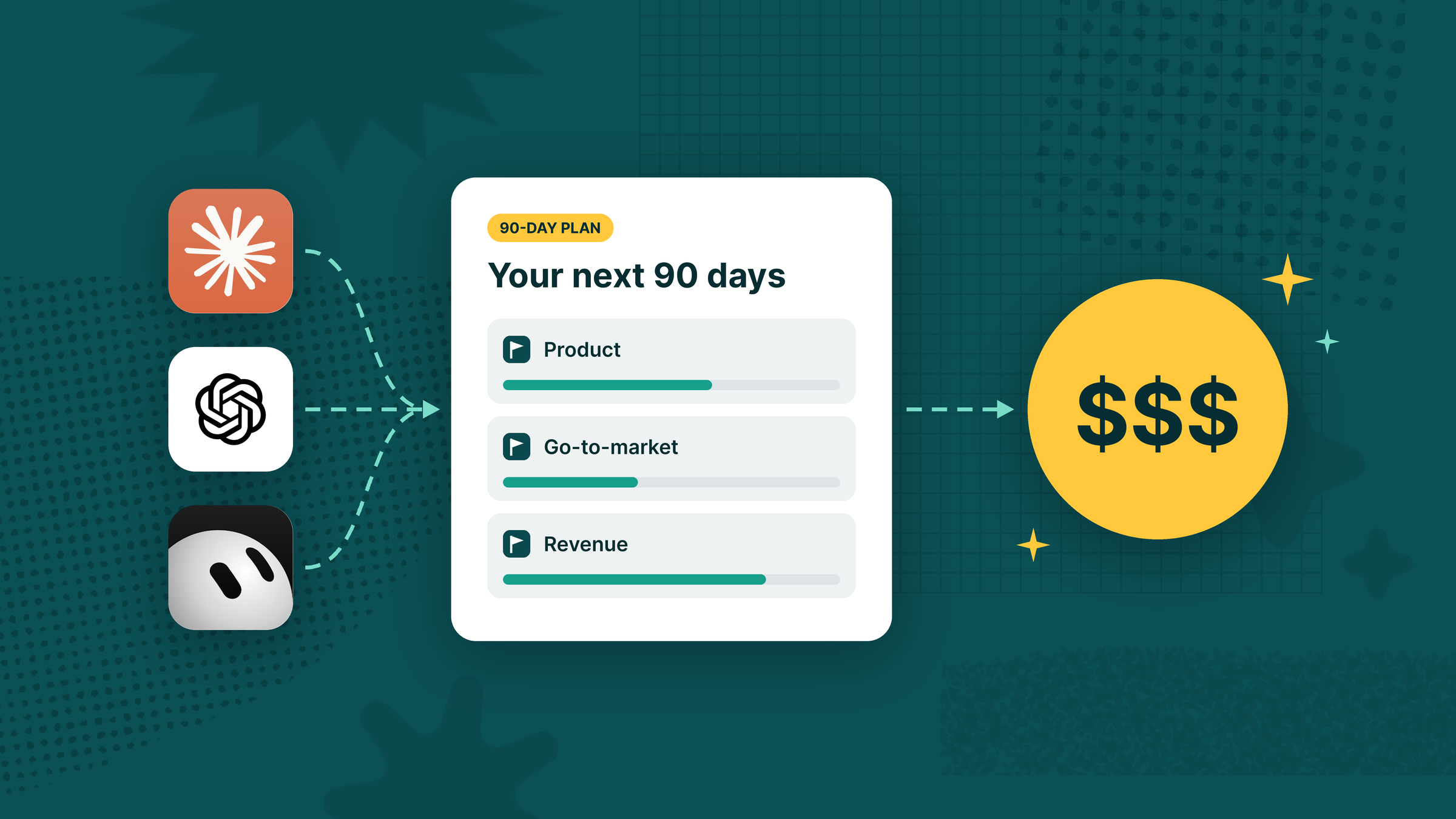
MCP (Model Context Protocol) is an open standard that lets AI tools connect to external apps and interact with their data. The Tability MCP server means you can plug your OKR workspace directly into Claude, ChatGPT, Gemini, or any other client that supports MCP.
This isn’t a read-only approach as it works in both directions. You can pull your OKR data into an AI conversation and ask anything about it. But you can also use AI to write back to Tability: creating new OKRs, logging check-ins, adding initiatives, or updating progress – without having to leave your AI client.
What you can do
- Ask "where are we on Q2 OKRs?" from Claude or ChatGPT and get answers grounded in your real data
- Use AI to generate a full set of OKRs and have them created directly in Tability
- Log check-ins and initiative updates without opening the Tability UI
- Combine your OKR data with other context (emails, documents, Slack threads…) inside your AI client for richer analysis
When it comes in handy
> You're in back-to-back meetings on a Monday and your CEO pings you asking for a quick read on where the team landed last quarter.
> You're already in Claude drafting a separate email.
> Instead of switching tabs, hunting through Tability, and piecing together a summary from memory, you just ask: "Give me a summary of our Q3 OKR results."
> Claude pulls the live data from Tability and gives you a clear answer in seconds.
> You paste it into your reply and move on.
How to start using it
- Follow the Tability MCP Server installation instructions
- Go to your preferred client
- Ask "Can you see the data of the workspace: <your workspace id> in Tability?"
2. AI Mode and saved prompts
AI Mode brings a conversational AI interface inside Tability itself – no configuration required. You open it and start asking questions. It already knows your workspace: your goals, your check-ins, your team structure.
But it goes further than just answering questions. You can save prompts as reusable reports and share them with colleagues, so everyone on the team can run the same query whenever they need it. And when a prompt surfaces insights worth acting on, you can go from that conversation directly into building a filtered view or dashboard in the UI.
What you can do
- Ask "what's at risk this week?" and get a grounded, prioritised answer based on your actual check-ins
- Create saved prompts for recurring reports — weekly summaries, status by team, lagging outcomes — and share them across the organisation
- Go from a natural language prompt to a filtered UI view or dashboard without manually configuring anything
- Get help writing stronger check-in updates or better-worded key results
When it comes in handy
> It's Thursday afternoon and you've got a leadership review first thing Friday.
> You open Tability, pull up AI Mode, and ask: "Which of our outcomes are behind and what's the most common reason?"
> You get a clear summary: two outcomes are lagging, both blocked by the same resourcing issue that came up in three separate check-ins.
> You save the prompt, share it with your team leads so they can run the same check before future reviews
> Now you walk into every Friday meeting actually prepared.
How to start using AI Mode
- Go to your Tability workspace
- Click on AI Mode in the nav
That's it! From there you can send any prompt to talk to your data.
3. The OKR agent
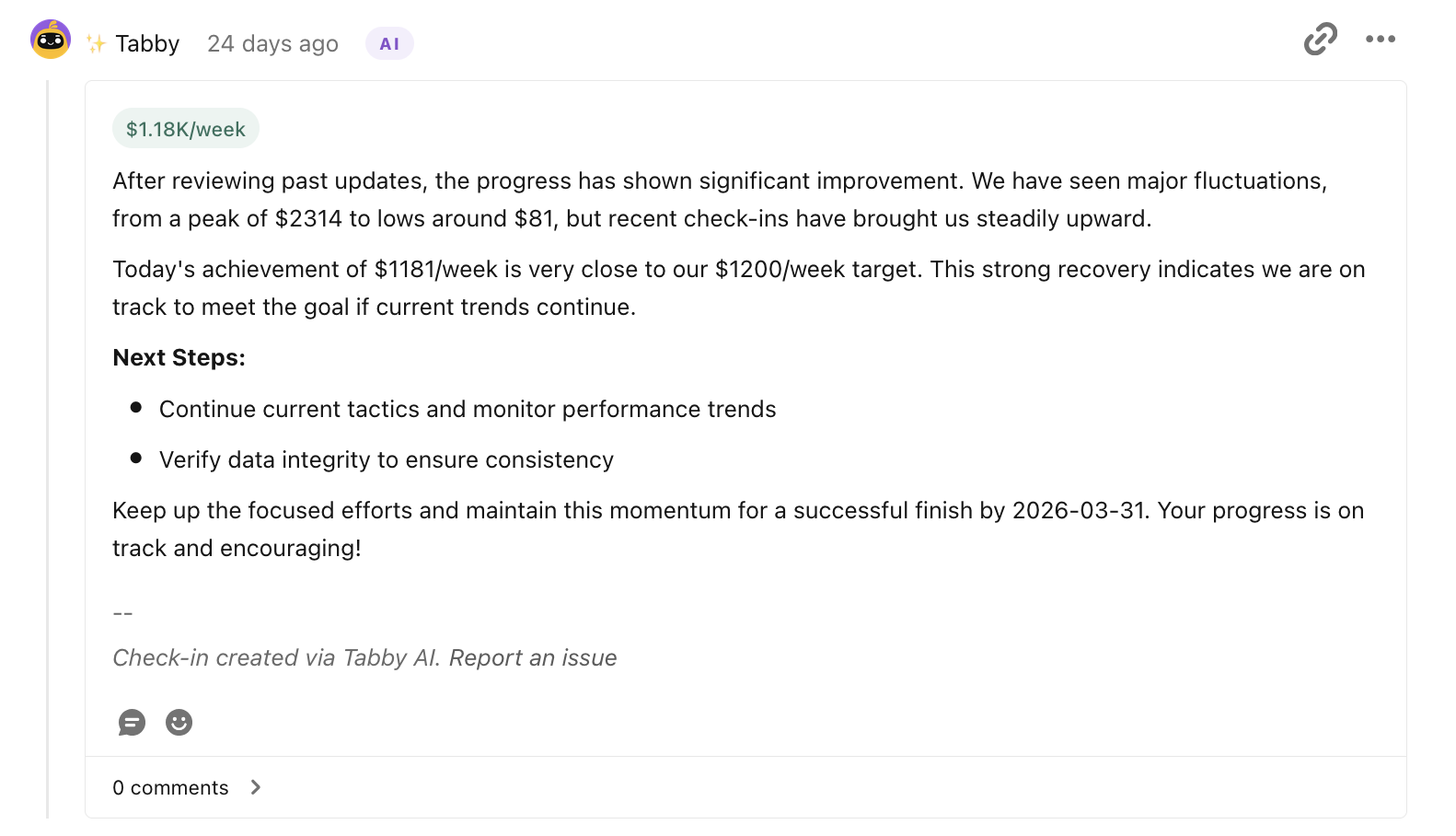
Connect the OKR agent to a data source (CRM, analytics tool, database…) and it will take care of everything for you by monitoring progress and sharing updates straight to your inbox.
What used to require someone to manually pull numbers, write an update, and log a check-in every week just happens. The agent does it for you, on schedule, with the data it has access to.
What you can do
- Connect a data source and have the agent track outcome progress without any manual input
- Automate check-in updates so your OKR data is always current, even when people are heads-down
- Keep your OKR rhythm consistent across the whole quarter without relying on anyone to remember
- Free up team members from the overhead of logging updates and let them focus on the work itself
When it comes in handy
- Your team is in the middle of a big product push and nobody has time to think about OKR updates.
- It’s week three, your OKR data is stale and you've got no idea what to tell the exec team in the upcoming monthly review.
- You connect the OKR to your CRM and analytics platform.
- The agent starts pulling the latest numbers, logs the check-ins, and update your dashboards – even when your team is heads-down on delivery.
- You show up to the exec review with data you actually trust.
How the three features work together
These features aren't mutually exclusive. They cover different parts of the same problem.
The OKR agent keeps your data fresh automatically. AI Mode lets anyone on the team interrogate that data without having to build a dashboard or know what to look for. And the MCP server brings all of it into whichever AI tool your team already lives in.
The result is a goal-tracking process that actually runs itself. Your team stays focused on outcomes. The system handles the rhythm.
That's what we mean by agentic OKRs. It’s not about removing humans from the loop, but removing the friction that was getting in the way of the loop actually working.


.jpg)

.png)